Create a survey and its questions
This page walks you through creating a survey: choosing its purpose, writing its questions, and publishing it.
Before you start
- Your account needs the Surveys service. If you don't see Surveys in the top menu, ask your account administrator.
- Each plan allows a set number of surveys. If you reach it, you'll see a message offering to add one more survey.
1. Choose the purpose and a starting point
- Click Surveys in the top menu, then New Survey.
- Choose the purpose that fits your study. It decides which analysis you'll get
(see Surveys at a glance):
- Academic & Postgraduate Research
- Institutional & HR / Employees
- General Survey
- Pick a starting point: one of the ready-made surveys for that purpose, or Start blank.
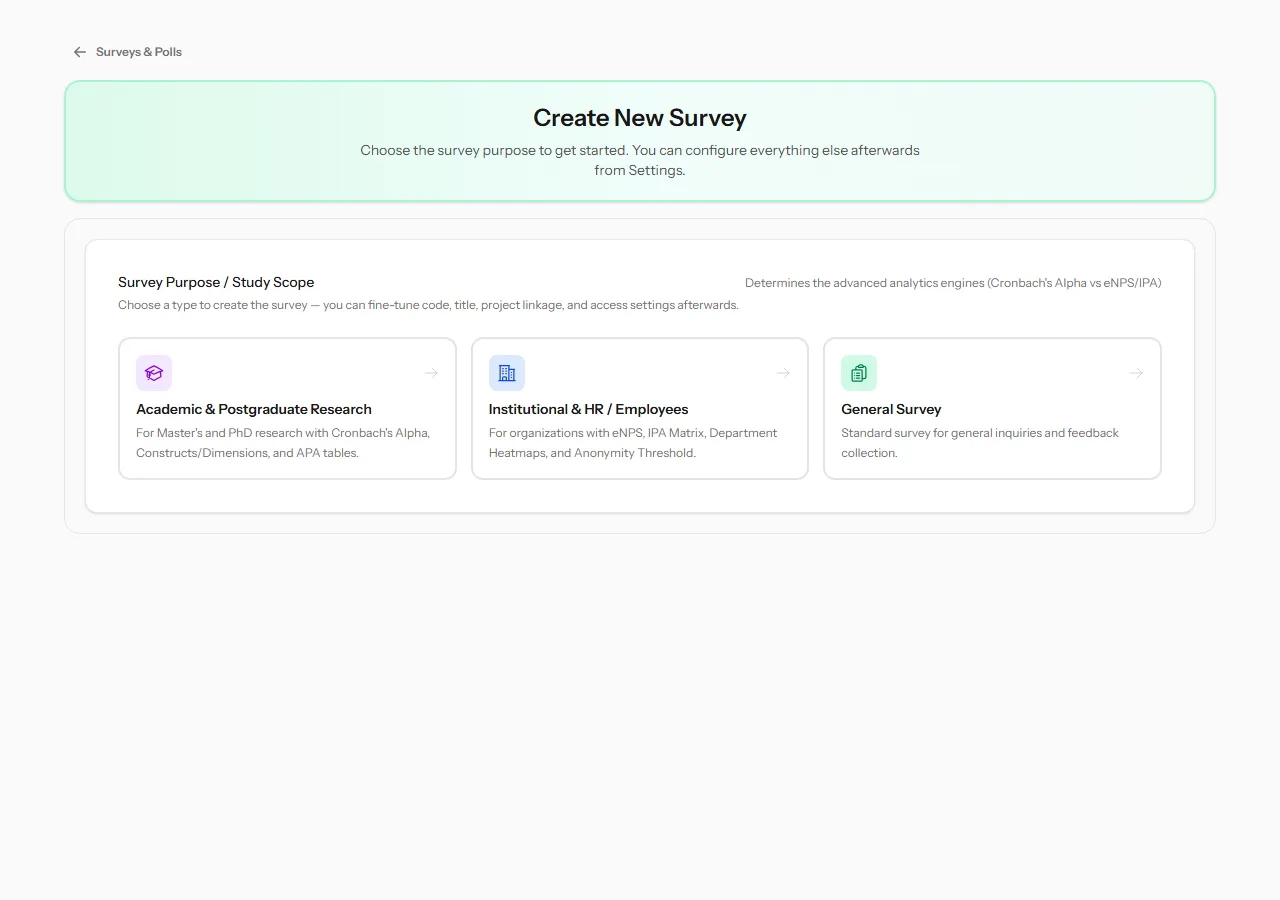 The first step: the purpose decides the analysis tools this survey will have.
The ready-made surveys for each purpose:
| Purpose | Ready-made surveys |
|---|---|
| Academic & Postgraduate Research | One for each common study design: correlational, comparative, descriptive, pre/post (experimental) and instrument validation. Each has 4 to 6 items per construct and a reverse-worded item already marked. |
| Institutional & HR / Employees | Employee engagement and eNPS, employee satisfaction by department, training course evaluation, work climate, and feedback on your manager. |
| General Survey | Beneficiary satisfaction, customer satisfaction and NPS, event and activity evaluation, community needs assessment, and post-distribution monitoring. |
Pick one and the builder opens with its title, questions and pages filled in. Edit anything you like. Nothing is saved until you click Create Survey, and no example answers are ever added.
When you save, the survey is also set up for the analysis it was built for. An academic template sets the study design and its tests. An institutional one points the eNPS, the department comparison and the importance-performance matrix at the right questions. You can change all of this later in Survey settings.
Then type the Survey Title, or keep the template's. Keep the suggested Survey Code, or type your own.
2. Add your questions
Click Add Question. The question window has these fields:
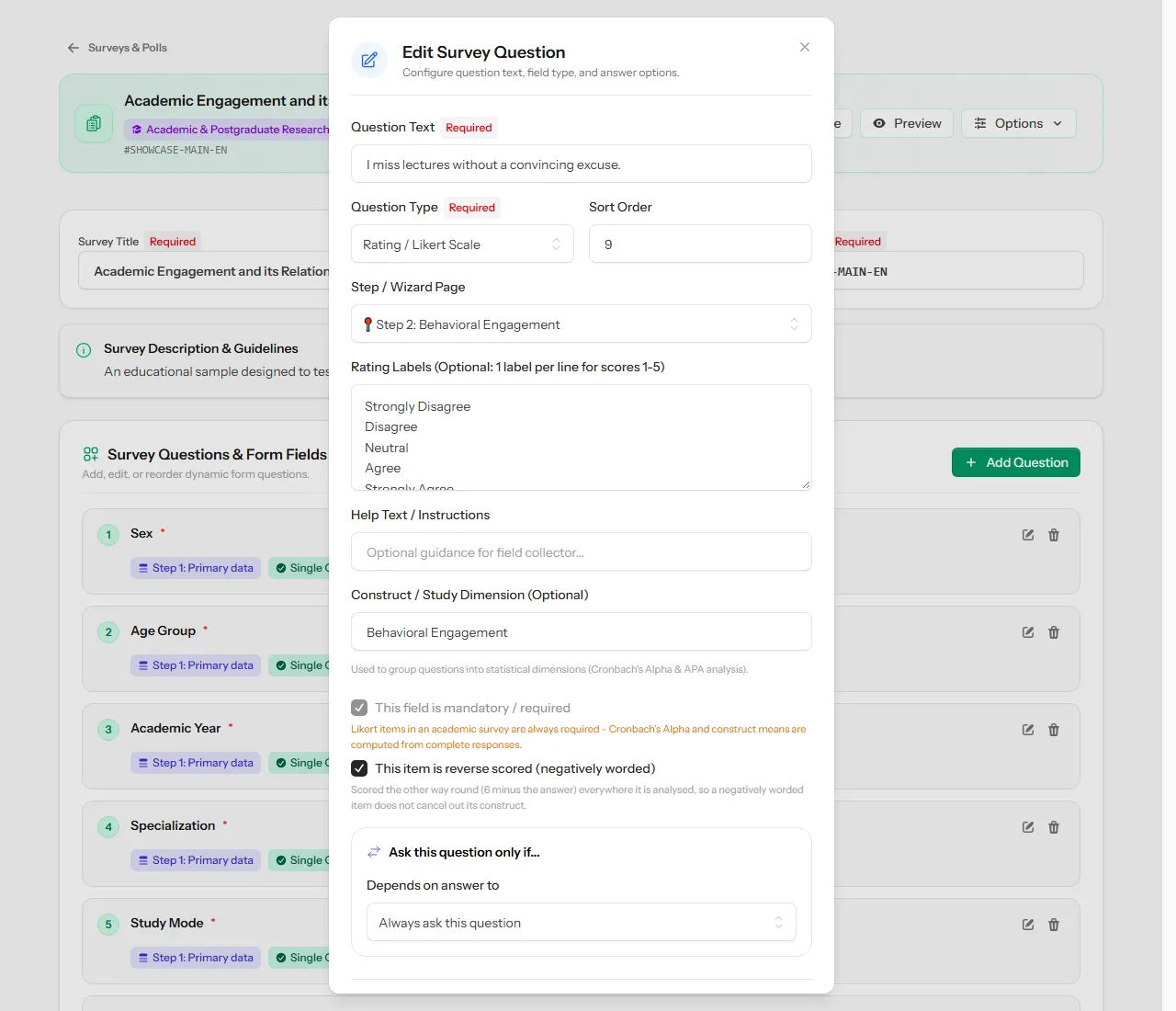 A negatively worded item, with its construct and reverse scoring switched on.
| Field | What it's for |
|---|---|
| Question Text | The question respondents read |
| Question Type | Text Input, Numeric Input, Single Choice Radio, Multiple Choice Checkbox, Rating / Likert Scale, Date, or Yes / No |
| Sort Order | The question's position |
| Step / Wizard Page | Which page it appears on, for multi-step surveys |
| Choices / Options | One option per line. For rating questions, the labels of points 1 to 5 |
| Help Text / Instructions | A short explanation under the question |
| Construct / Study Dimension | Groups items that measure the same idea, such as "Behavioural engagement". This is what reliability and construct scores are built on |
| This field is mandatory / required | Respondents must answer it |
| This item is reverse scored | For negatively worded rating items. The answer is flipped (6 minus the answer) in every analysis, so it doesn't lower its construct |
| Ask this question only if... | Skip logic: show the question only when an earlier answer matches a condition |
| Accepted answers | Limits: minimum and maximum number, earliest and latest date, or number of characters. For text questions also a Custom pattern, see below |
Click Save Question, and repeat for each question.
Custom pattern for text questions {#pattern}
For a text question with a predictable shape, such as a national number or a phone
number, set a Custom pattern under Accepted answers, for example
^[0-9]{10}$ for exactly ten digits. In Message when it does not match, write
what respondents should see if their answer doesn't fit. If you leave it empty they
see "Enter a value in the expected format."
- You don't have to write the pattern yourself: click Pattern helper, pick a ready-made format such as Mobile number, set what it starts with and its length, and press Use this.
- The pattern must match the whole answer:
[0-9]+accepts digits only and refuses0591234567abc. - A pattern that can't be understood, such as one with an unclosed bracket, is refused when you save the question.
- Patterns work on Arabic text too: the Pattern helper's ready-made Arabic letters only format accepts Arabic letters and spaces.
- An empty answer to an optional question is never checked, and neither is a question that skip logic hid.
- The pattern is checked on the public link, on the in-app response page, in the preview, and when you import responses. It is copied when you duplicate the survey.
- The Collect app does not check it. See Custom patterns in the field.
Note A survey with no questions can't receive responses. Add at least one question before sharing it.
Note In an academic survey, rating questions are always required. A missing answer would silently distort Cronbach's alpha and construct means.
3. The question builder
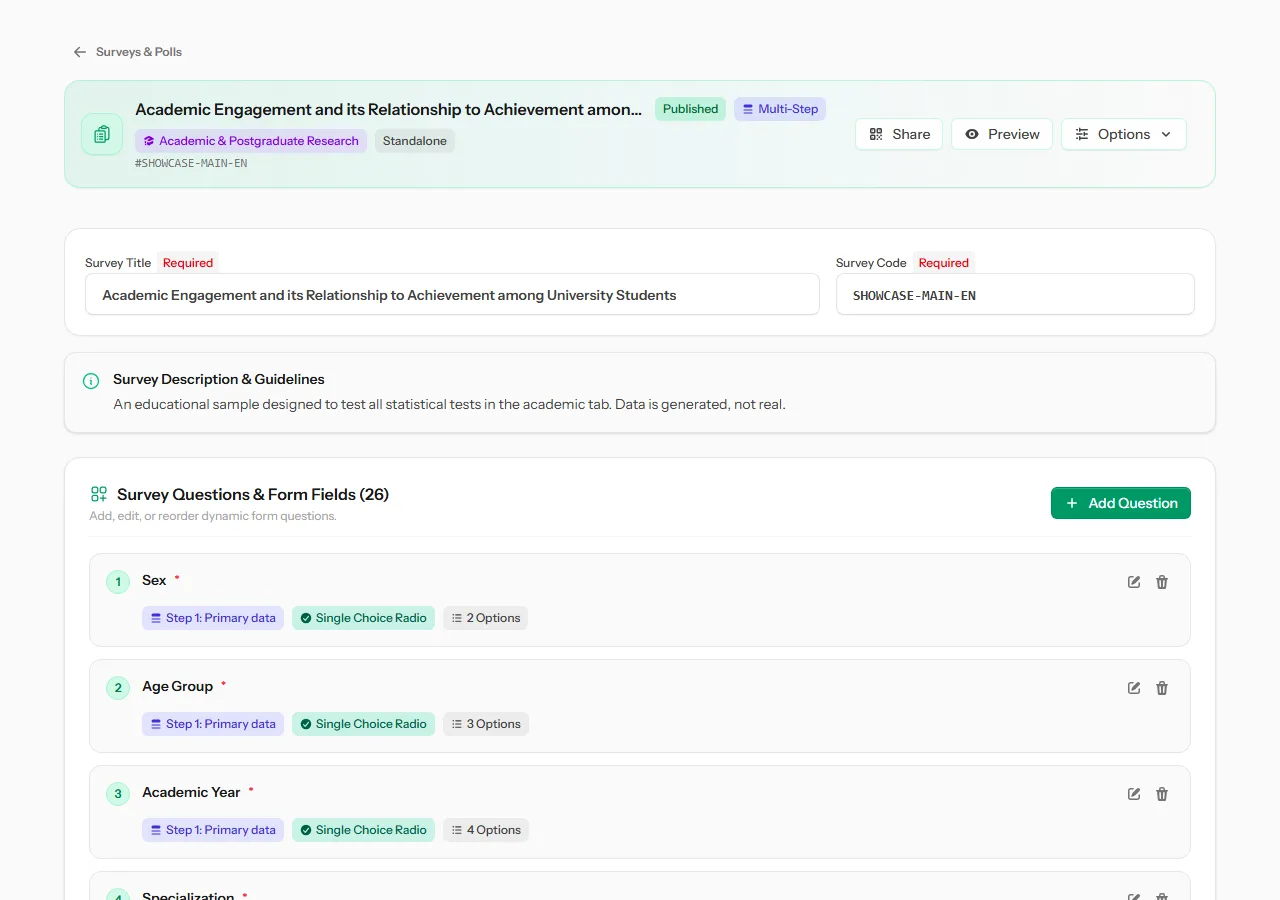
The Build Questions page lists every question with its step, type and number of options. Use the pencil to edit a question, and the bin to delete it.
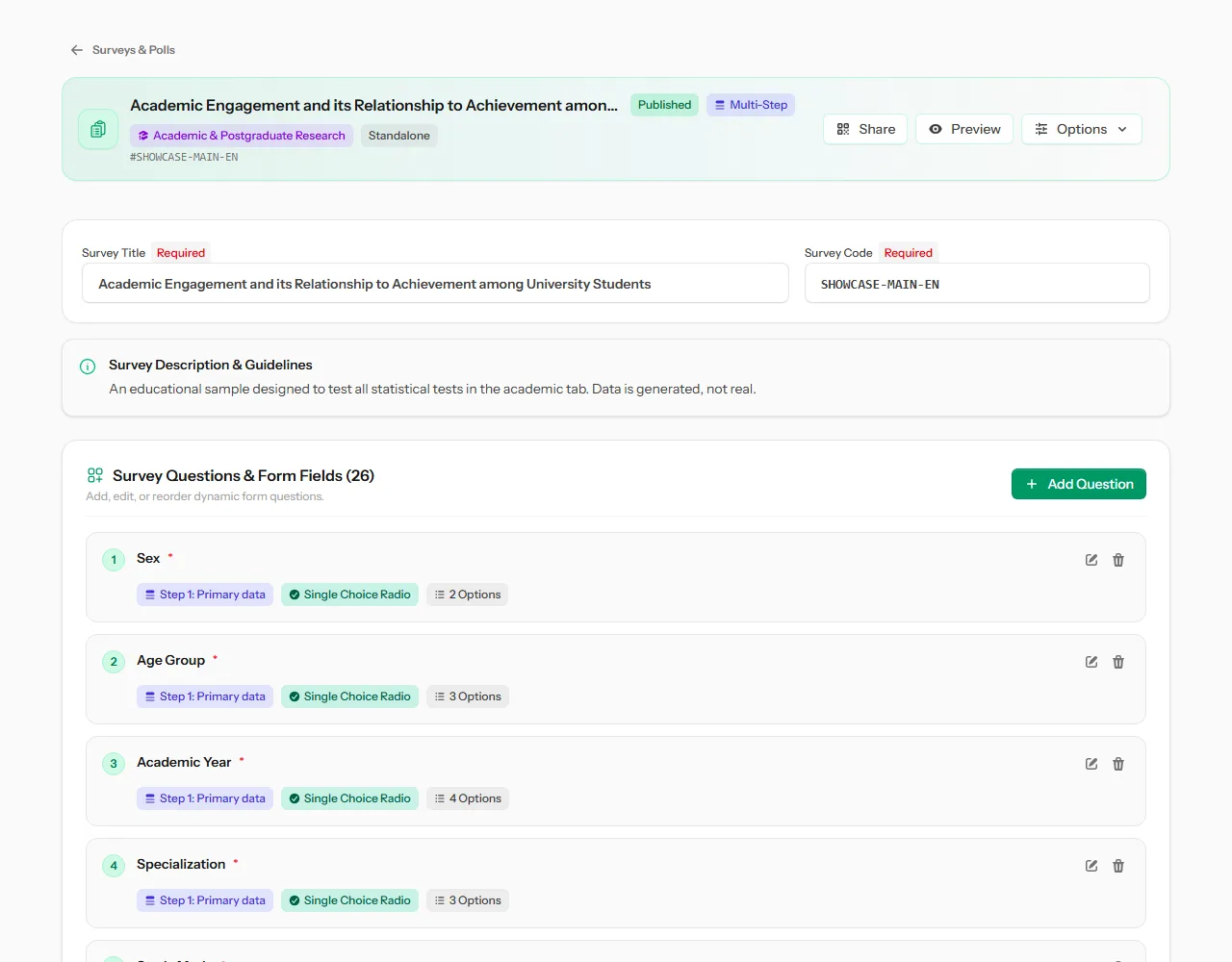 The builder: title, code, description, and the list of questions.
The Options menu at the top moves you between the survey's screens: settings, questions, results, preview, public link, filling it in yourself, and field collection.
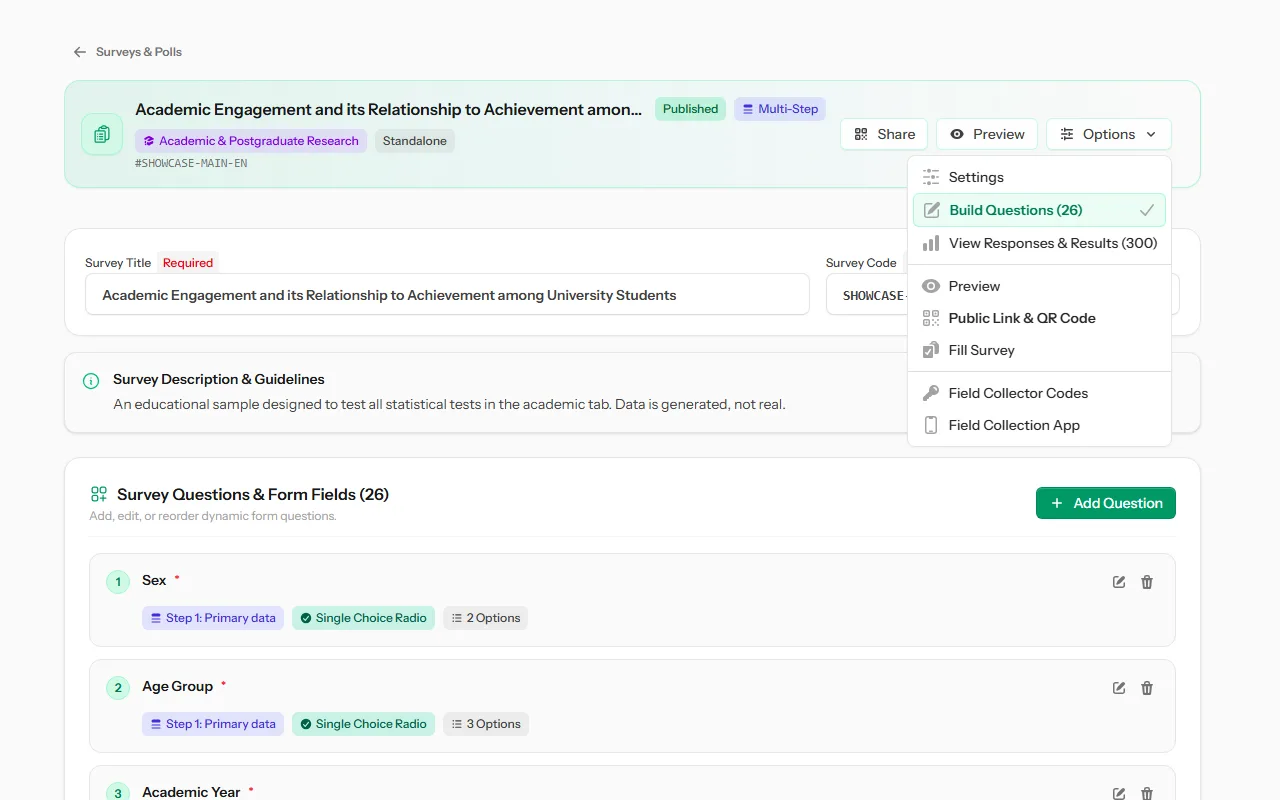 The Options menu, with the current screen ticked.
4. Publish and share
- Check your questions with Preview.
- Click Publish Survey at the top of the builder. It only appears while the survey is a draft.
- Click Share to get the public link and QR code.
 The share window: copy the link, or let people scan the QR code.
Note Public access is on for new surveys. If the share window says it's off, open Settings → Control & Access and turn on Allow Public External Access via Share URL.
What's next
- Adjust how the survey behaves in Survey settings.
- For a research study, read Academic and postgraduate surveys.