Survey settings
Every survey has a settings page with seven tabs. Open it from the survey's Options menu → Settings. Changes are kept only after you click Save Settings, at the top or bottom of the page.
| Tab | In short |
|---|---|
| Details & Info | Title, code, status, description, and link to a monitoring indicator |
| Metrics & Weights | Which questions make up the satisfaction score, and how much each one counts |
| Mapping | Which questions hold gender, age or department, and the constructs of the total score |
| Sample & Quotas | Sample size calculator, target size, closing date |
| Control & Access | Accepting responses, public link, anonymity, multi-step pages |
| Analysis & Tests | Study design, and which statistical tests run |
| Languages | Translating the survey for respondents |
Details & Info
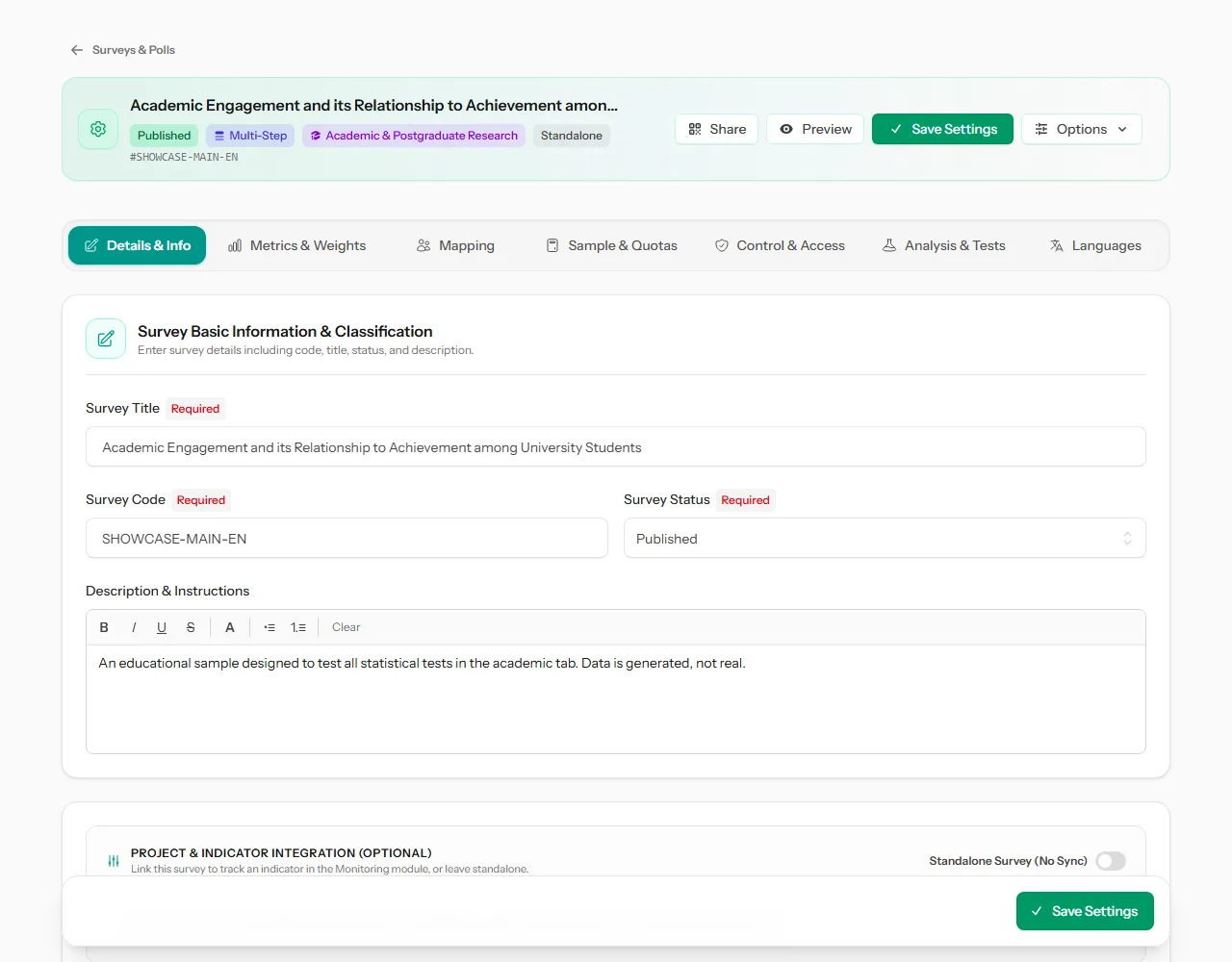
- Survey Title, Survey Code, Survey Status and Description & Instructions. The description is shown to respondents at the top of the survey.
- Project & Indicator Integration (Optional): leave the survey standalone, or link it to a monitoring Project, an optional Activity, and the Indicator to Measure. Turn on Auto-sync Responses to Indicator to update the indicator's achievement automatically as answers arrive.
Metrics & Weights
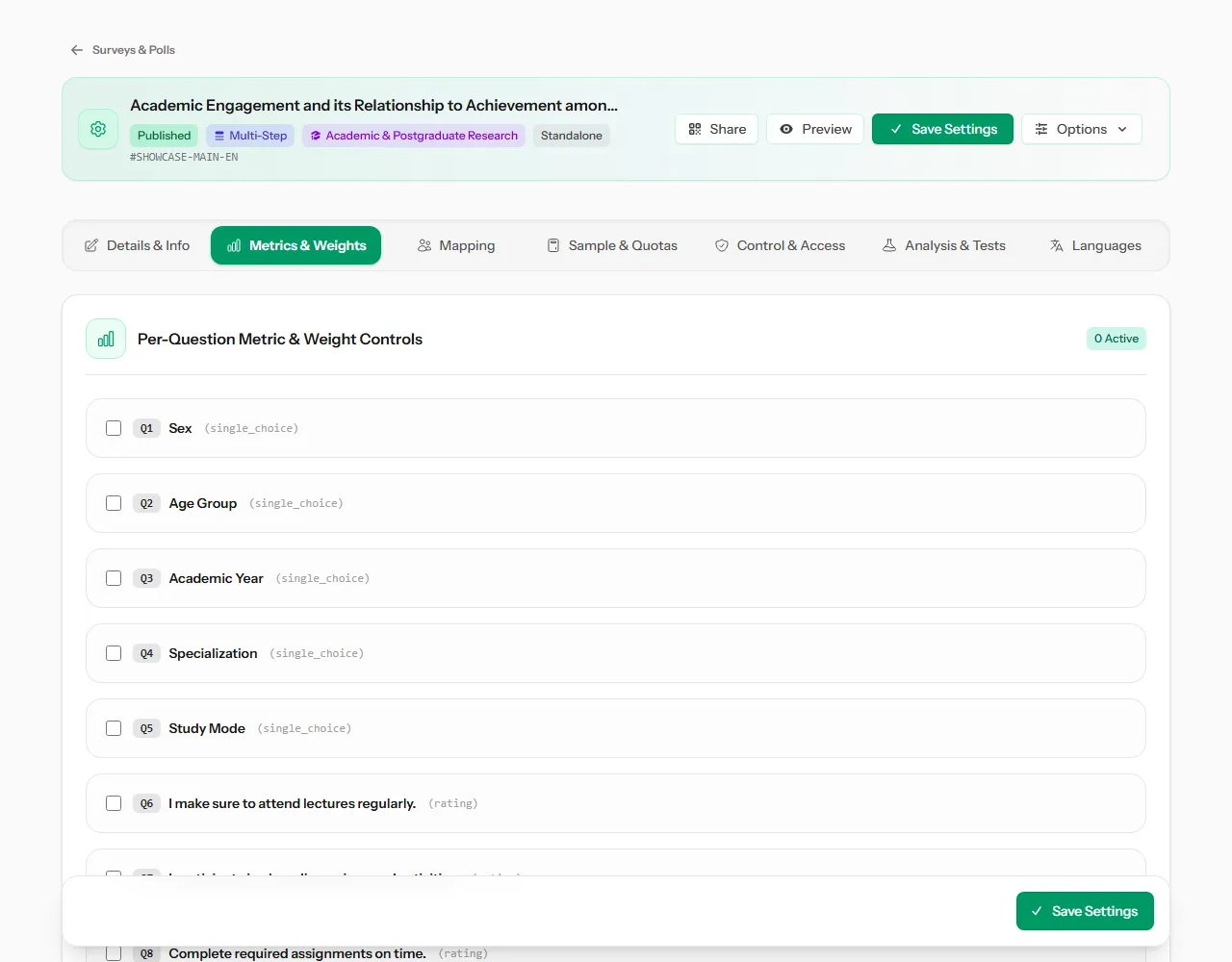
This tab decides how the survey's satisfaction or positive rate is calculated. For each question:
- Active Metric Question: tick it to include the question in the score.
- Question Metric Weight (%): how much it counts, from 0.1 to 10. Default 1.
- Rating Threshold (1-5): the rating that counts as positive. Default 4, so 4 and 5 are positive.
- Positive Answer Options: for choice questions, which answers count as positive, such as "Satisfied" or "Yes".
Mapping
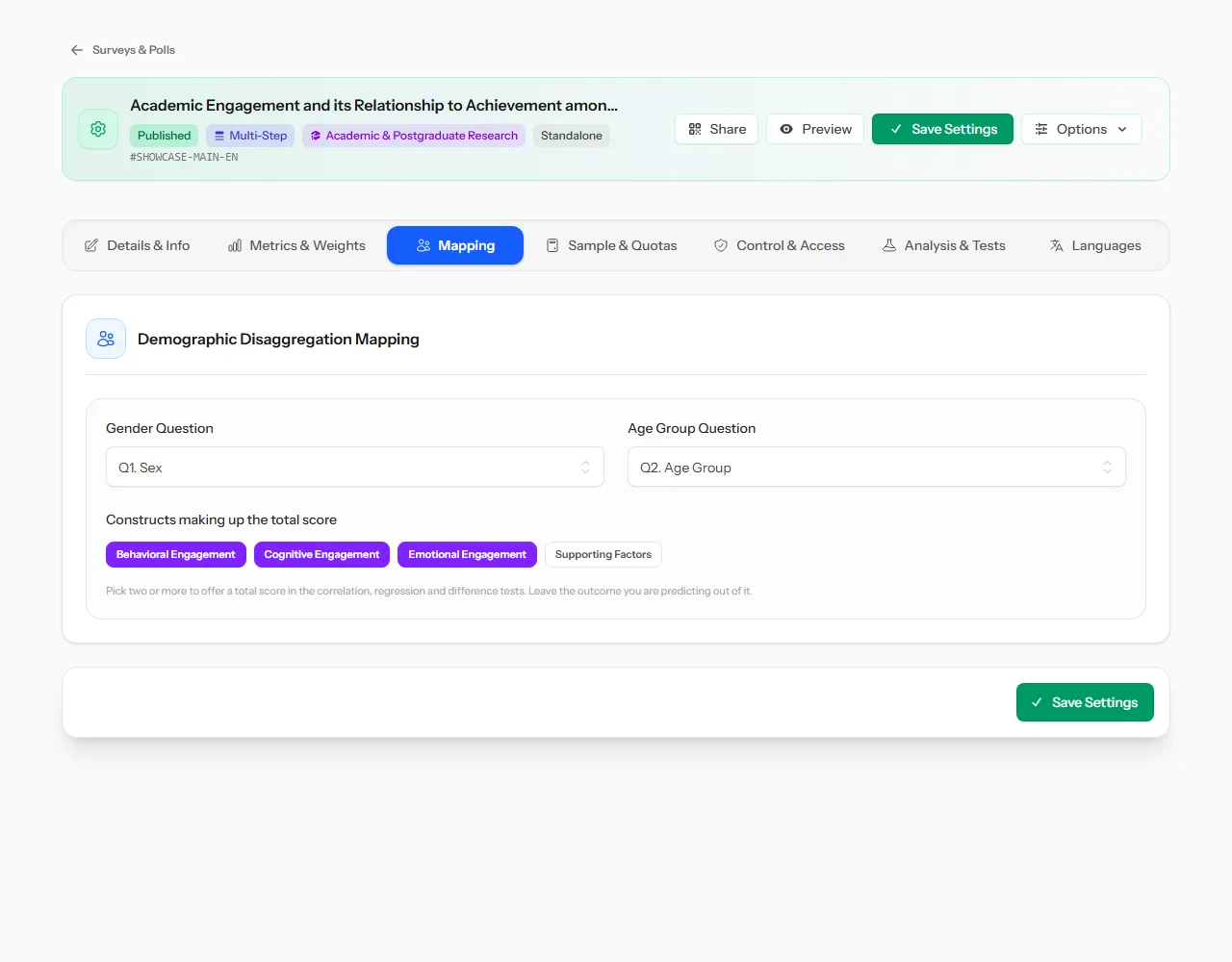
- Gender Question and Age Group Question: tell Pulseform which questions hold them, so results can be broken down by gender and age.
- Constructs making up the total score (academic surveys): pick two or more constructs to create a total score, which you can then use in correlation, regression and difference tests. Leave out the outcome you're trying to predict.
Institutional surveys also get:
- Department / Branch Question: groups results by department.
- eNPS Question: the "how likely are you to recommend" question.
- Anonymity Threshold: departments with fewer answers than this (default 5) are hidden, to protect respondents.
Sample & Quotas
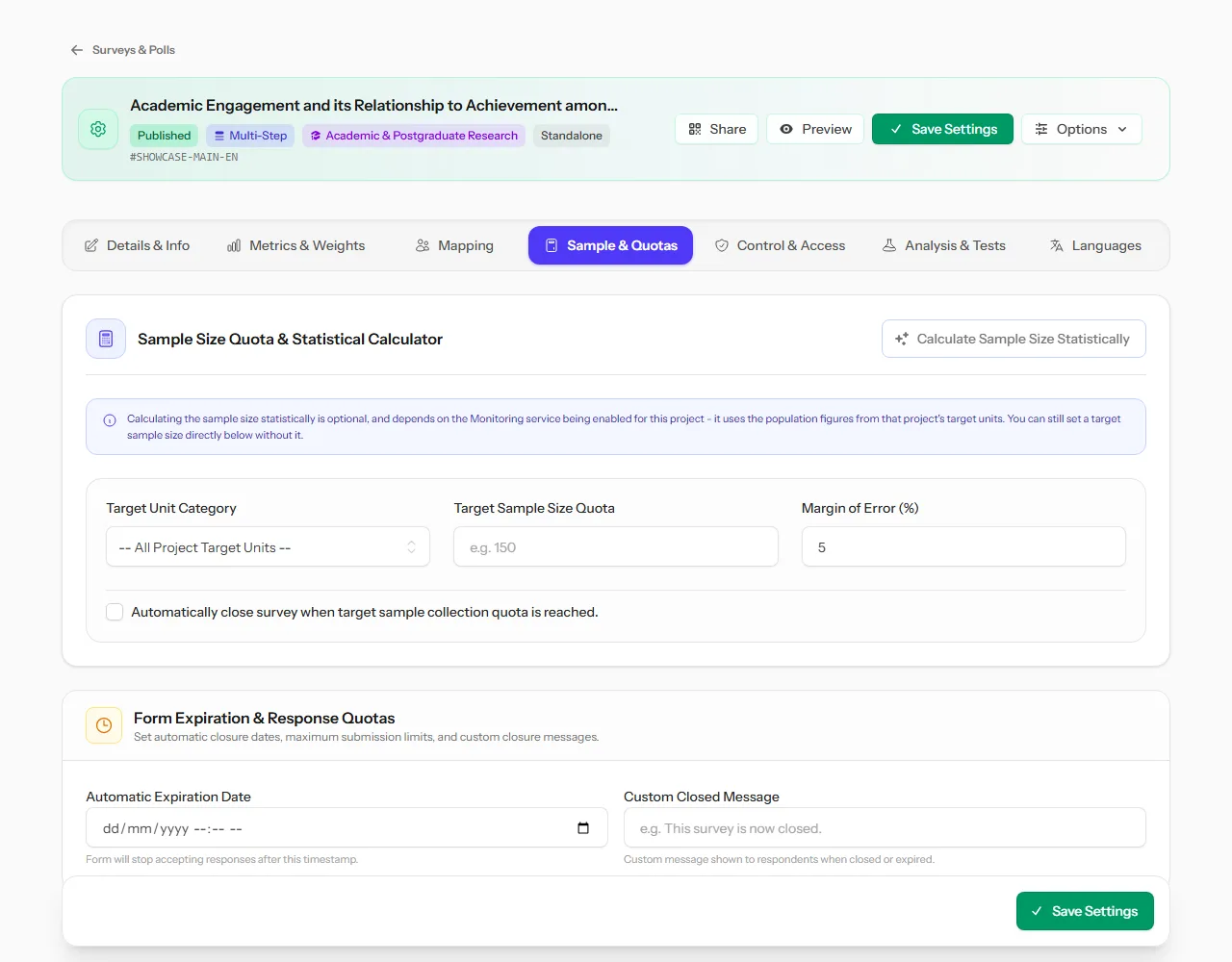
- Calculate Sample Size Statistically: works out the sample you need from the population size, Margin of Error (%) and Confidence Level (%), then applies it. The population comes from your monitoring project's target units.
- Target Sample Size Quota and Margin of Error (%): your target. Progress toward it appears on the results page.
- Automatically close survey when target sample collection quota is reached.
- Automatic Expiration Date and Custom Closed Message: close the survey on a date, and choose what respondents see afterwards.
Control & Access
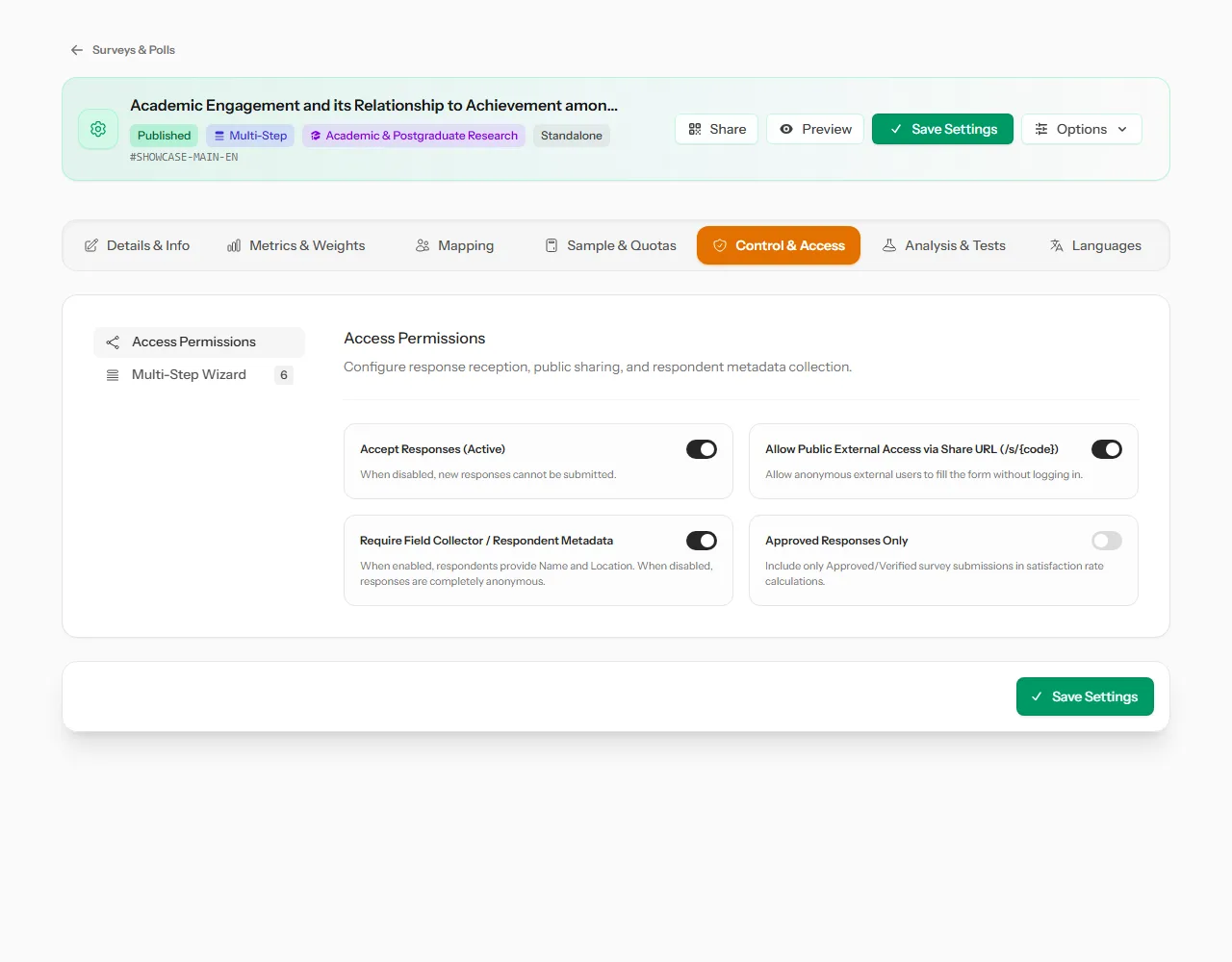
Access Permissions:
- Accept Responses (Active): turn it off to pause the survey.
- Allow Public External Access via Share URL: lets people answer through the public link without signing in.
- Require Field Collector / Respondent Metadata: asks for a name and location with each answer. Turn it off for anonymous surveys.
- Approved Responses Only: only approved answers count in the satisfaction rate.
Multi-Step Wizard: split a long survey into pages. Turn it on, then Add Step and name each page. Each question is assigned a step in the question window.
Analysis & Tests
This tab appears for academic and institutional surveys.
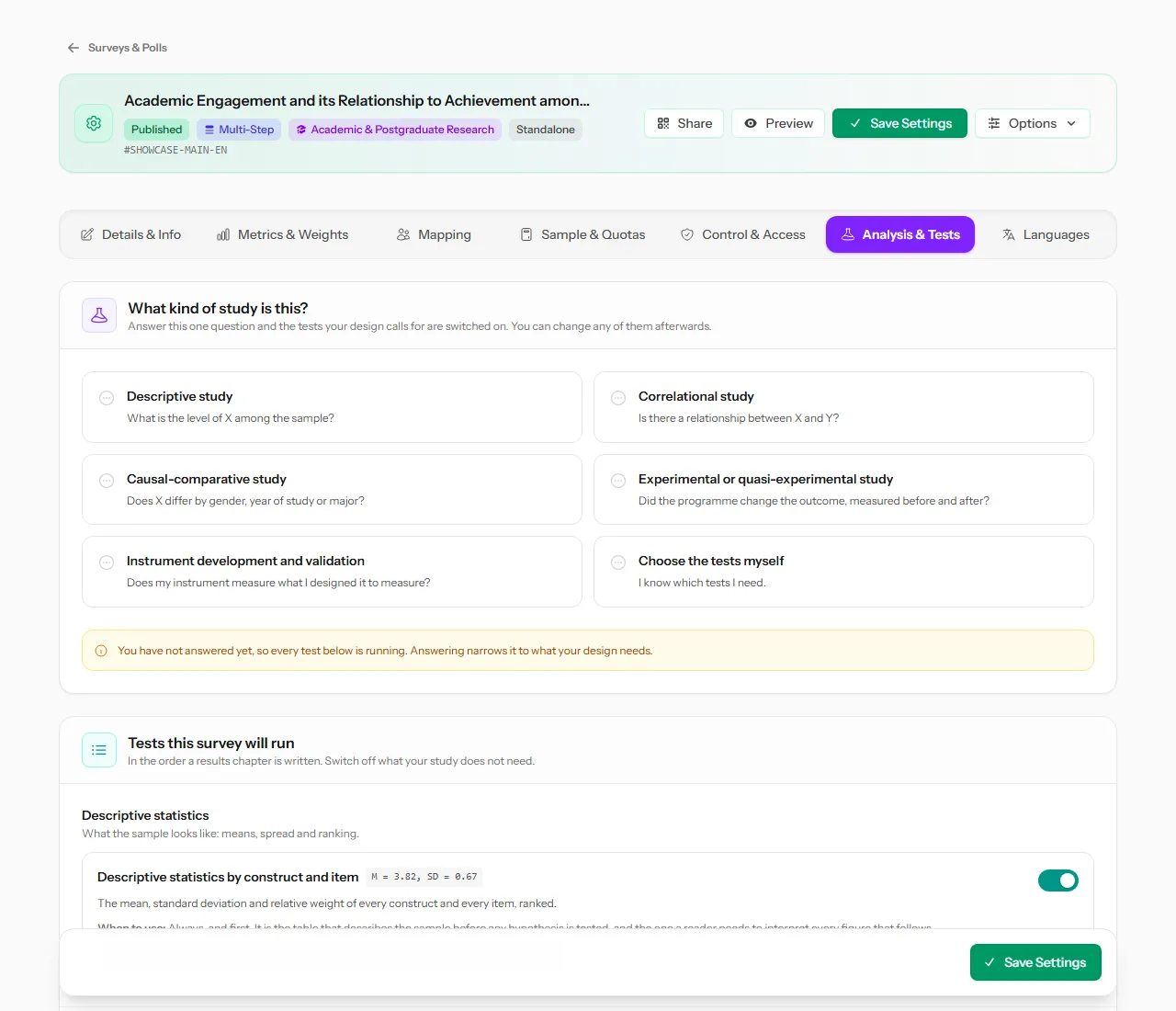 Answer one question, "What kind of study is this?", and the right tests are switched on.
What kind of study is this?
| Study design | Tests switched on |
|---|---|
| Descriptive study | Descriptive statistics, reliability |
| Correlational study | + normality, correlation, regression |
| Causal-comparative study | + normality, differences between groups, structure and association |
| Experimental or quasi-experimental study | + normality, differences between groups |
| Instrument development and validation | + normality, correlation, factor analysis |
| Choose the tests myself | Everything, to switch off as you like |
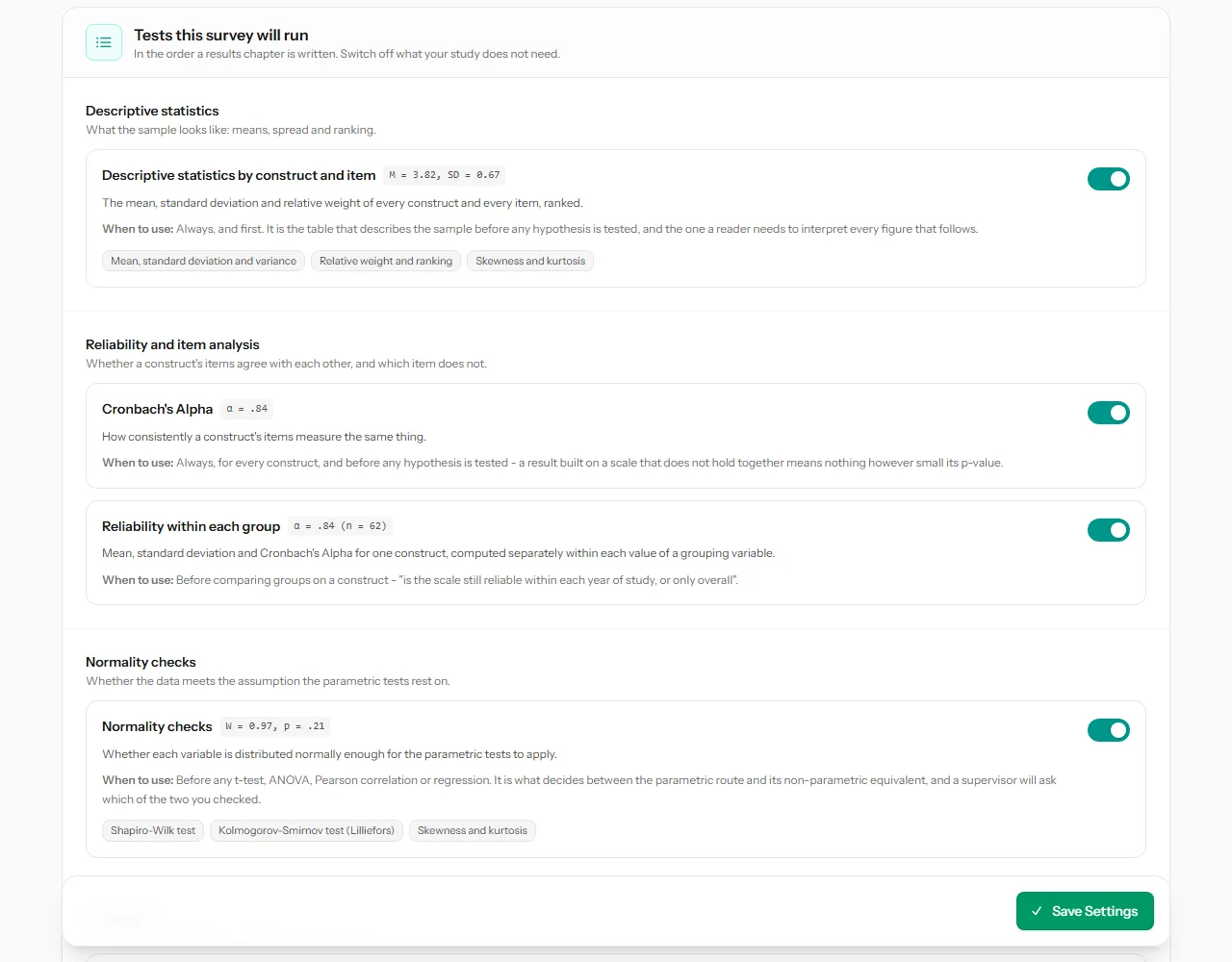 Each test shows an APA example, when to use it, and a switch.
Under Tests this survey will run, each test has a switch, an example of how it is reported in APA style, and a note on when to use it.
Note Switching a test off only hides it. It never makes a result valid that the data can't support.
Languages
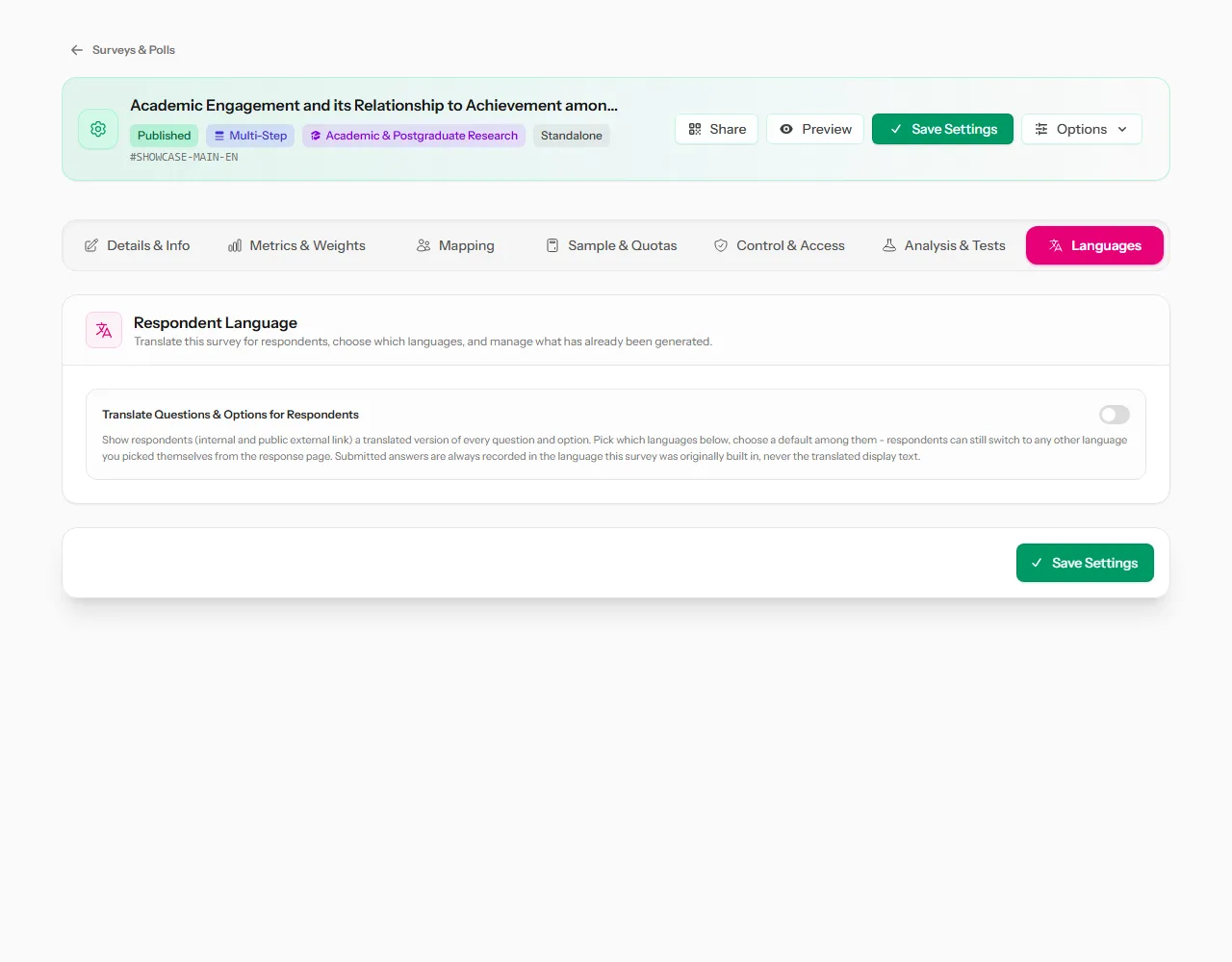
Translate the survey's questions for respondents, choose the default language, and review each translation before it's shown. See Translate a survey.